 on the Members tab of the ribbon.
You can edit an existing formula. You can also create a new formula based on an existing one.
1. Click the formula icon next to its name, or click Edit on the Members tab of the ribbon.

The Formula Pane displays the details of the selected formula.
2. Enter the required changes: add or remove members, modify the formula format, the precedence and the formula type. You can also change the name of the formula.
In order to create a new formula and leave the original formula unchanged, you must assign a new name.
3. Click Apply.
If you have changed the formula’s name, a message will now appear for either confirming the new name or creating a new formula under the new name.
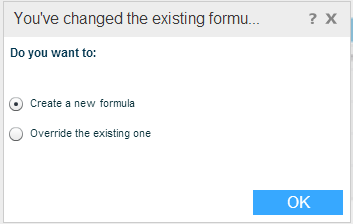
To save the formula with the new name and the changes, select Override the existing one. Click OK. The grid displays the formula according to the changes you have made.
To create a new formula, select Create a new formula and click OK. The grid displays the new formula in addition to the existing formula.