Using the Dimension Selector in a View Component
The Dimension Selector  button on the View tab of the ribbon opens the Dimension Selector window where you can easily edit the selected view and the data in it. Via this single window, you can add and replace dimensions in the columns, rows and slicers of the view using drag and drop, and perform such functions as selecting members, adding totals, and choosing a layout.
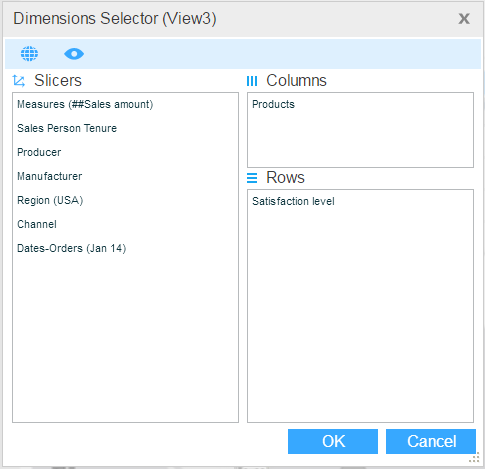
The Dimensions Pane
The Show All Dimensions  button shows and hides the Dimensions pane. This pane shows the dimensions in the data source.
Dimensions may be organized in sections. To display only the dimensions under a certain section, select that section from the dropdown list at the top of the pane.
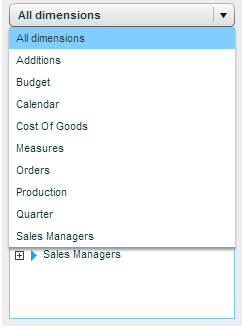
To return to the full list, select All Dimensions.
Use the search box to quickly find dimensions.
The dimensions in the Dimensions pane are marked with the following icons:
|
Icon
|
Indicates that the dimension …
|
|

|
is included in the Slicers pane.
|
|

|
is displayed in the horizontal axis (rows) of the grid, in the current view.
|
|

|
is displayed in the vertical axis (columns) of the grid, in the current view.
|
|

|
does not appear in the Slicers pane.
|
The Slicers Pane
The Slicers pane shows the slicers of the view. To add a slicer, drag a dimension from the Dimensions pane to the Slicers pane. To remove a dimension from the Slicers, drag it back to the Dimensions pane.
Clicking the down-arrow on a slicer displays the context menu for that slicer.
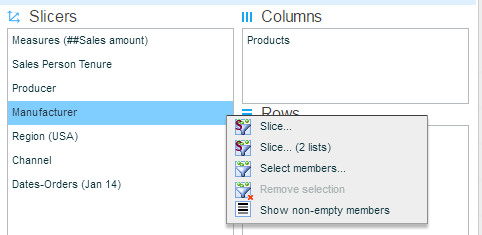
Slice
The Slice option displays the dimension’s members.
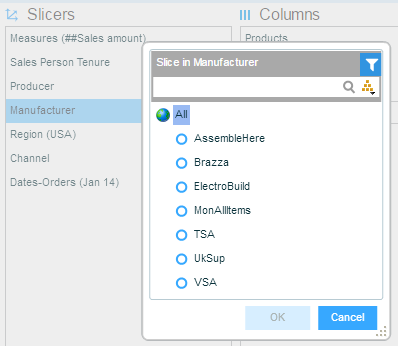
Search
You can use the search box to search for a specific member: Click  to expose the search box. Type the member’s name, fully or partially and click the search
  button (or press Enter).
To clear the search results, delete the text in the search box and click .
To filter the search to a specific level of the dimension, click the Search in  button. From the menu that opens, select the level.
To return the search to all levels, select All Levels in the menu. Selecting Reset All Dimensions returns the search in all the dimensions to All Levels.
Slicing
You can slice data by one or more members of a dimension. Select the member with which you want to slice. To select multiple members, use Ctrl-click or Shift-click.
Click OK.
Slice (2 Lists) and Select Members
The Slice (2 Lists) and Select Members options enable you to perform more advanced member selection and to create sets.
Show non-empty members
By default, all the members of the selected dimension display, including those for whom data is unavailable in the views. To display only the members for whom data is available in a view, select Show Non-Empty Members. This option toggles between showing all members and showing only members with values.
Columns and Rows
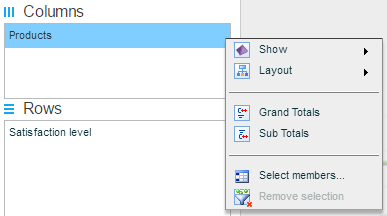
The Columns and Rows panes list the dimensions in the X and Y axes of the grid. To add a dimension, drag a dimension from the Dimensions pane to the Columns or Rows pane. To remove a dimension from the grid, drag it back to the Dimensions pane. There can be more than one nesting in each axis.
Clicking the down-arrow on a dimension displays the context menu for that dimension.
The Preview Pane
The Preview Pane displays the view according to your design. The Show Preview  button shows and hides the Preview pane.
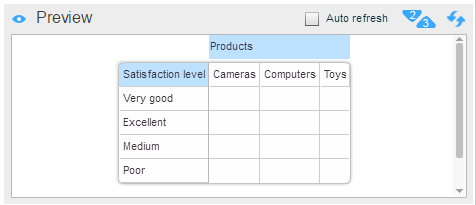
After making changes, refresh the preview by clicking  . To preview with values, click
  .
.
When Auto Refresh is selected, the preview is automatically updated after every change.